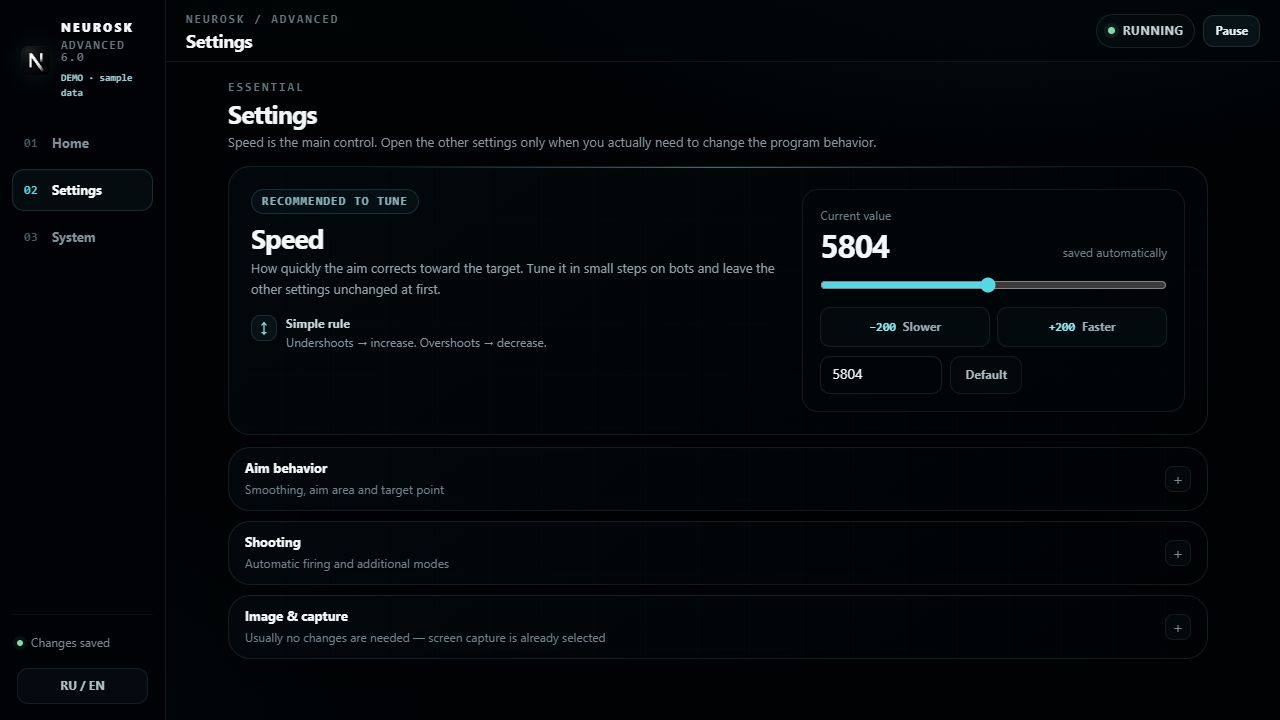
1. First launch: start with the prepared config
The default parameters are already prepared out of the box; there is no need to adjust the entire config on first launch. Initial tuning usually needs only an in-game FPS cap and Speed. Leave the other controls at their defaults to begin with.
Home, headed Overview, shows model, driver and capture readiness. Settings contains aiming and image controls; System contains models, drivers, hotkeys and diagnostics. Check readiness first, then tune Speed.
- In the game settings, cap FPS at your monitor refresh rate or lower: for example, 144 FPS for 144 Hz. If correction feels delayed or stutters, lower the cap in steps and compare. NeuroSK capture rate is a different setting; leave it at its default for the initial setup.
- Open a practice range or a bot session. Keep your usual mouse DPI and in-game sensitivity unchanged so the comparison stays consistent.
- Adjust only Speed: increase it if correction falls short, and decrease it if it overshoots. Test each change before making another.
2. Speed is different from Smoothing
Speed controls how quickly aim corrects toward a target. The interface suggests small changes on practice targets: increase it when correction falls short and decrease it when correction overshoots. Keep game conditions consistent and change one setting at a time.
Smoothing, inside Aim behavior, describes how softly correction is applied. It does not replace Speed. Mouse DPI, in-game sensitivity and performance conditions affect the context of a copied value. Recheck after those conditions change; there is no universal setting.
3. Analysis area and aim area
Analysis area width and height, under Image & capture, describe the central screen region NeuroSK analyzes. Aim area width and height, under Aim behavior, describe where correction applies. Both use two dimensions but control different stages.
If recognition looks wrong, inspect the image and detected boxes in the diagnostics window first. If detection is correct, examine aiming conditions separately. Enlarging the aim area cannot supply information missing from the image. Analysis area size is also separate from the game’s own field-of-view setting.
4. Reading the aim point height control
Aim point height selects a vertical position inside a character’s bounding box. The preview shows a silhouette and approximate body zone. This guides positioning; it does not promise a hit on that body part at every distance or pose.
Aim at body only has a different role: it excludes separate head detections. The height control still determines the exact point within the character box. The switch and slider therefore should not be treated as two names for the same setting.
5. Keep model and driver checks separate
System provides automatic model preparation on first launch. Rebuild is intended for a changed source model or model troubleshooting. It does not adjust mouse Speed, so rebuilding a model is not the first response to uncomfortable correction speed.
The mouse driver controls input delivery and is confirmed at startup. Correct boxes do not establish input compatibility with your game and system. Compare supported methods separately, then follow your build’s installation instructions.
6. Read each diagnostic in context
NeuroSK processing on Overview measures application processing, not game FPS. The diagnostics window can show boxes, labels, confidence, inference time and the window’s own refresh rate. These describe different stages; a single indicator does not measure the entire response delay.
Wait for Changes saved before comparing changes. A save error means you should not assume the change was confirmed. For support, record the page, status and repeatable symptom instead of a collection of unrelated adjustments. Remove your license key before sharing screenshots or logs.
7. Common questions and useful next steps
I can see boxes, but the mouse does not move. What next?
Check the pause state, assigned targeting key and selected input method. Image recognition and mouse control are separate stages; increasing the analysis area cannot replace checking input delivery.
Will these settings work in every game?
This overview explains the controls. Check current requirements and your build for compatibility. Settings do not guarantee protection from bans; consider the game’s rules.